The new chat and channels experience brings all your chats, teams, and channels together. It's now easier than ever to keep track of your conversations with customized views to fit your needs and preferences. Start by deciding how you'll experience your chats and channels.
You can choose to keep chat, teams, and channels combined in a single view.
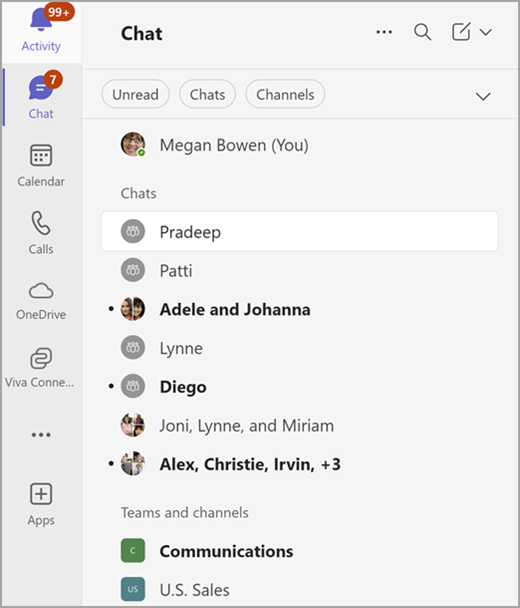
Or you can also switch to separate Chat 

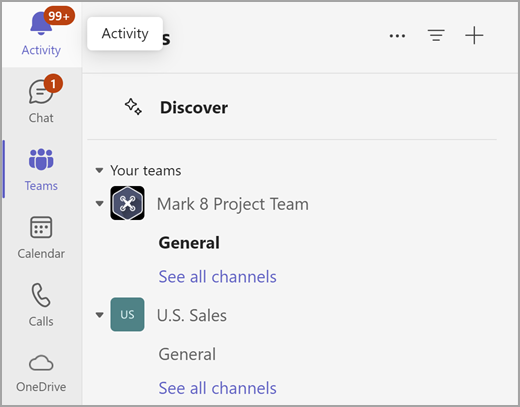
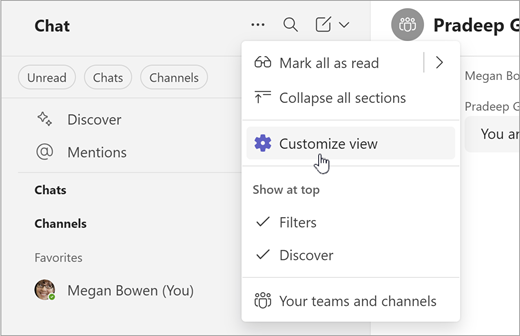
To customize your experience,
Select More list options
.
Select Customize view
from the top of your chat list.
View your channels in a single list
You can choose to show only the names of the channels and not the teams they are a part of. Then, separate the channels from their teams, by sorting by recency to bring the latest to the top.
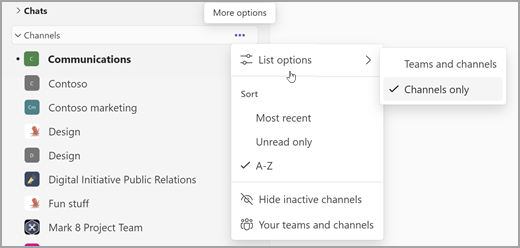
On the Channels section label, select More options
Select List options
> Channels only.
Select Most recent to sort by recency.
Note: Have a lot of channels named general? Those channels will still include their team's name to help you tell the difference between them.
Stay on top of your conversations
The new chat and channels experience streamlines conversations by placing chat, teams and channels in one place.
In the combined Chat view, conversations are organized into three sections:
Favorites: your most important conversations from both your chats and channels.
Chats: your recent chats, sorted by most recent activity.
Teams and channels: your channels, organized by teams.
In the separate Chat and Teams view, each view has two sections. There's a favorites section, plus either chat or channels.
When there's activity in any of your chats or channels, their name will be in bold. If you're in the combined view, a Teams and channels quick navigation bar will also turn bold even if those channels aren't currently viewable.
View all your teams and channels by selecting either See all your teams and channels or See all your teams from the bottom of your list.
Learn more about channel notifications.
Organize your conversations
You start with either two or three sections. However, custom sections let you add more. Organize channels and individual, group, and meeting chats into smaller sections. Create sections for projects, topics, or any subject to make it your own.
Create a custom section by selecting New items, then selecting New section.
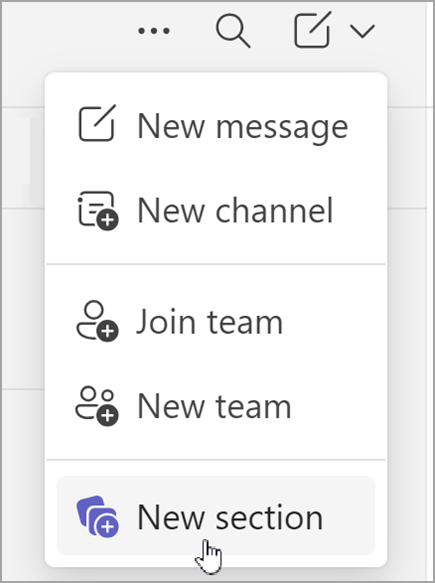
Learn more about creating custom sections.
See more details
The new chat and channels experience efficiently organizes all your conversations. However, if you’d like more details, turn on message previews and show team names from Chats and channels settings.
View message previews in your chats and channels by selecting Settings and more
Learn more about message previews.
Prioritize conversations with filters
Have a lot of messages? The new chat and channels experience makes it easy to sort your conversations.
Choose from multiple filters including:
Unread messages
Chats
Channels
Meeting chats
Unmuted conversations
Select a filter to limit your conversations. Unselect a filter to show all results.
Tip: Clear activity notifications faster by selecting the Unread filter.
Quickly find posts, mentions and more
Access the information you need without leaving your chat or channels. The new @mention view lists all your mentions in chats, channels, and meetings.
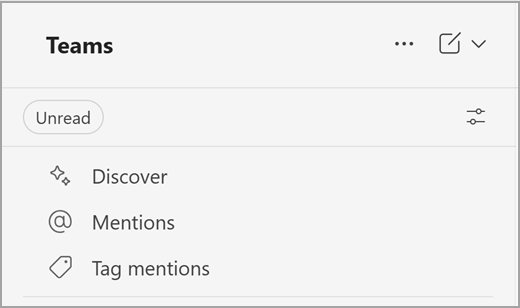
You can also quickly access your Discover feed and Tag mentions.