HOW-TO - Syncing a Teams Share to Onedrive

MS Teams has an ability to integrate with OneDrive to synchronize folders and files to your local computer, but how can we make it work? This was the question being asked by one of our leading clients as part of the ongoing MS Teams migration that we are carrying out. There are numerous articles, which I personally felt confused about, so I just thought to document the steps followed and published in MS to help others.
We will walk through the steps on how to sync the Teams files to the local computer below:
Step 1: Go to a folder that you would like to sync to your computer
As you build your Team, you will create a variety of channels. Channels represent different projects, topics, or initiatives within your Team. I think of Channels as sub-folders in a larger folder (Team). Each Channel has a Files section where documents and folders for that Channel are saved. Using OneDrive, we can create a local copy of folders and files from the Files section. Any files saved to this Channel’s file section will show up on Team members’ computers, regardless of where they are.
In this example, I’ll create a local copy of the General Channel from my DWP-PS-Offshore team.
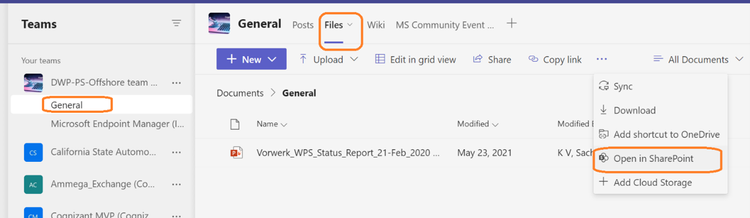
Step 2: Open the folder in SharePoint:
In order to access the sync tool we need, we’ll have to open the File section in Team’s big brother, SharePoint. From within the Channel’s Files section, navigate to the folder you want to sync to your computer and click the Open in SharePoint link. This will open a web page (you may need to log in to Office365) that shows the Channel’s file section in SharePoint. Find and click the Sync icon in the toolbar of the SharePoint page.
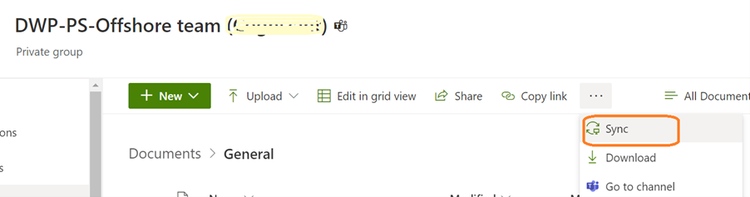
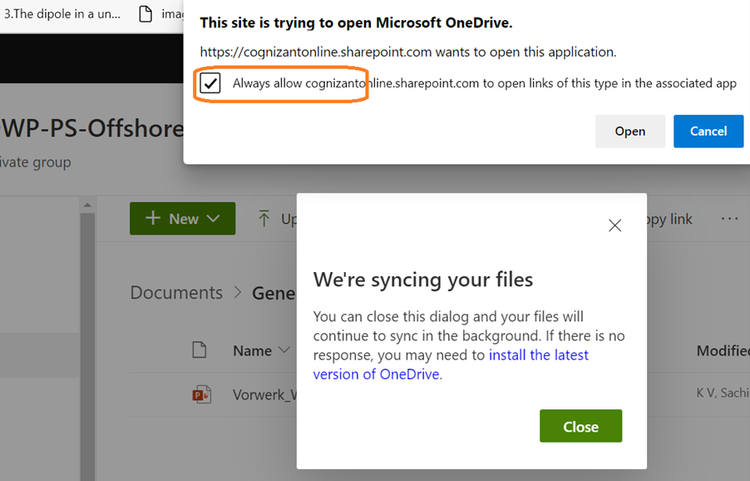
Step 3: Sync the folder in OneDrive:
When you click Sync, a permission window will pop-up asking you to confirm that you want to use OneDrive to perform the sync action. Once confirmed the sync will start, and you may ignore the close the popup window that confirms on the syncing started.
Note: Depending on the amount of data to sync, the process could take a few minutes to complete.
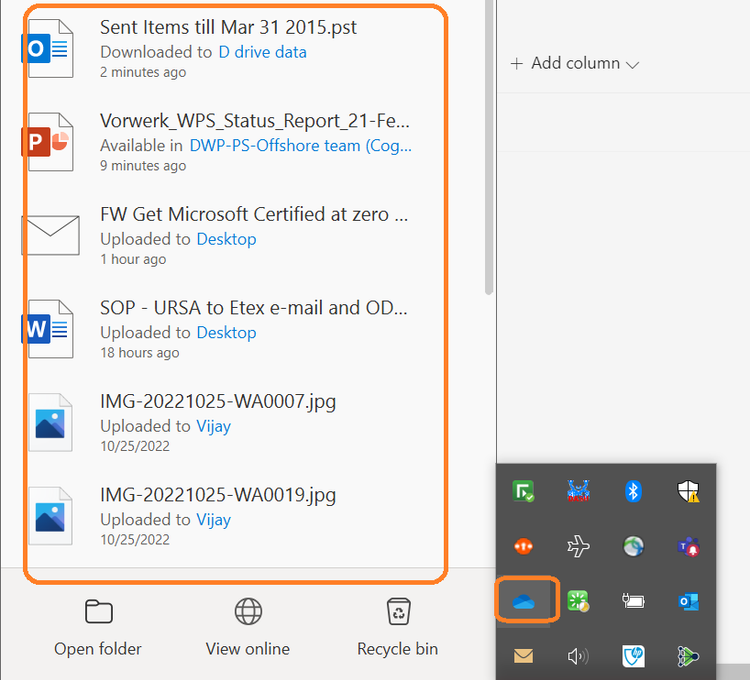
Step 4: Your data is now available on your local Computer:
In order to see the files synced, or being synced, you can access this folder by right-clicking (Windows) the OneDrive client near the clock in the bottom right corner.
A few points to note:
- You can treat this folder like any other folder on your computer. Open and Save files to it and they will be available to other members of your Team.
- These files are synced. If you delete from your local folder, it will delete on the web version. For everyone. Deleted files can be found in the recycle bin located in the SharePoint view of your Channel files (see Second step).
- You cannot adjust permissions for this sync. Everyone who is a Team member has the ability to create and delete folders and files. Just like they do in Teams.
- Access to these files is determined by membership to the Team. It is the Team owner’s responsibility to periodically review membership to determine if access to resources is still appropriate.
- Large files saved to your local sync folder may take a few minutes to reach all team members syncing that folder.
Related Articles
How-To - Add shortcuts to shared folders in OneDrive
When someone shares a folder in Microsoft OneDrive, SharePoint, or Teams, you can add a shortcut to the shared folder in your OneDrive to easily find and work with the files. These shortcuts appear in OneDrive on the web, Windows File Explorer, Mac ...New Chat and Channels Experience in Teams
The new chat and channels experience brings all your chats, teams, and channels together. It's now easier than ever to keep track of your conversations with customized views to fit your needs and preferences. Start by deciding how you'll experience ...First things to know about channels in Microsoft Teams
In Teams, teamwork and communication happen in channels. A channel is a single place for a team to share messages, tools, and files. Channels can be organized by group, project, feature, or whatever else is relevant to you. Team members can adjust or ...Microsoft Teams Quick Start
Microsoft Teams Quick Start Get started with Microsoft Teams Applies To Paused Microsoft Teams is a collaboration app built for hybrid work so you and your team stay informed, organized, and connected — all in one place. Tip: Get tech expertise with ...Viewing Shared Folders in Outlook
New Outlook View mailboxes or folders shared with you In new Outlook, select Settings > Accounts > Shared with me. From the Shared with me pane, you can see the name of the folder and the person who shared it with you. To view the permissions you ...